
Note: Texting requires Toniq registration and has associated costs (a monthly support fee, and a per text charge). Patient responses to texts are received within Toniq and count towards the total number of texts.
Process
Multiple criteria can be used to select patients for texting or emailing. For example, to target patients regarding flu vaccinations, the criteria could be over 65-year-olds or patients who had a flu vaccination last year. To target patients for the funded shingles vaccine the criteria could be set for just 65-year-olds, or a specific medicine could be selected to find patients for a recall.
1. Create a template
A template is used to send the same message to multiple patients simultaneously and can be re-used in the future. Unique templates can be created, or you can use a Toniq pre-made one. See Setting up text and email templates.
Note: Texts are limited to 160 characters per text (including the pharmacy name). The message will be sent over multiple texts if this limit is exceeded.
2. Select targeted patients
From the main menu go to 9. Other > 2. Bulk edit patients and set the required parameters.
- To find active patients, defined here as those who have had at least 1 item in the last 6 months:
- Select a Date Range using F3, then H Last 180 days, or enter a date range manually under Period.
- Enter 1 in the Items field and 65 in the first Age field (leave the to field blank).
-
Add a Criteria name (e.g. Flu vaccination) then press F11 Next Page.
-
ALTERNATIVELY:
-
Vaccination last season: If you wish to contact patients who had a flu vaccination last year, select last season's pharmacode in Medicine, enter the date range in the Period fields when it would have been dispensed, exclude the Age criteria suggested above, and continue with the steps below.
- Shingles: If you wish to contact patients for the funded shingles vaccination, set both the Age to 65 and the age to field to 65, so that only 65-year-olds are found:
-
Vaccination last season: If you wish to contact patients who had a flu vaccination last year, select last season's pharmacode in Medicine, enter the date range in the Period fields when it would have been dispensed, exclude the Age criteria suggested above, and continue with the steps below.
-
Press F11 Next Page and under More patient criteria tick Has mobile number or Has Email address:
-
- Warning: Only patients with an email address AND mobile number will be found if both options are ticked simultaneously.
- Press F11 Next page 3 times to return to the first screen, then F12 Accept Details.
Note: If you want to contact patients who have a mobile OR email, run the report as above, only ticking Has mobile number, then:
- Press F2 Edit list > Add more patients in bulk on the resultant list, and
- Enter the same date range and items and select Has Email address.
Filter the patient list
You can edit the resulting list to exclude patients or include more of them by pressing F2 Edit List and then either selecting Add more patient in bulk to include more patients to the list or Remove patients in bulk:
- The same parameters screen will display to add or remove more patients.
- For example, to remove patients in an institution select Remove patients in bulk then select the Institution:
-
- Note: An Institution group may also be selected to remove all required non-community facilities, if one has been set up.
Add more patients in bulk and Remove patients in bulk may be run as many times as required to get the desired contact list.
3. Contact patients
- Once the final list is created, press F9 Contact Clients, then select F7 Create Msg:
- Use a template (if created per step 1 above) by selecting F5 Tmplt then Use Template, otherwise compose a unique message and press F12 Accept Details:
- Select F9 Send Msg the preferred method of communication, and then select 1 all to send the message to everyone on the contact list:
- The email or text Date field will be updated to indicate who has been sent a message.
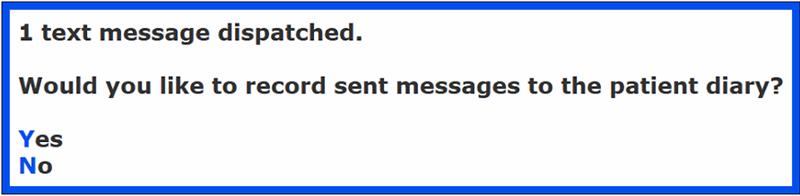
- A prompt will ask whether you want to add a Diary note of the text to patients:
Reviewed: 20/02/2025
Comments
0 comments
Article is closed for comments.