
You can now set up a quicker Interstore option that charges the desired debtor account automatically, removing several of the tendering steps.
Setting Up your Quick Interstore options
From the Main Menu in Retail:
- 7 Administration
5 Other Administration
7 Maintain interstore accounts - F3. Add
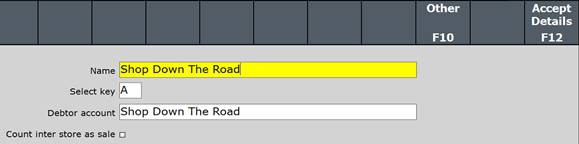
- Give the Interstore menu option a Name, choose a Select Key and choose the Debtor Account
NB: You cannot create a new Debtor Account from here, so make sure you have created one first.
- Choose whether it should Count inter store as sale NB: The Count inter store as sale tick box here only counts if the option in General options is unticked
- F12 [Accept Details] to save
Selling using Quick Interstores
From the Main Menu in Retail:
- 1 POS
1 POS selling
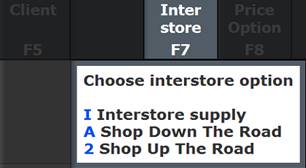
Seller Log On - Press F7. Interstore and choose your quick interstore option.

- Scan products into the sale as normal.
- Press F12, Accept I/S when finished adding items. It will charge the Quick Interstore account automatically and finish the sale.

Comments
0 comments
Article is closed for comments.